> ## Documentation Index
> Fetch the complete documentation index at: https://docs.pods.finance/llms.txt
> Use this file to discover all available pages before exploring further.
# Set Up Pods Ramp
> Configure Sumsub reusable KYC for Pods Ramp
Use Pods Ramp when your application owns the user experience, but wants Pods to handle local KYC/AML provider integration and expose one normalized approval status for fiat-to-crypto money movement.
Pods Ramp uses Sumsub reusable KYC: you own a Sumsub account and generate reusable share tokens. Pods receives a tax id, a short-lived Sumsub share token, the Sumsub applicant id, email, and wallet address. Pods creates or reuses an internal subaccount with the local KYC/AML provider, tracks the attempt, and exposes one normalized status back to you.
Pods does not store Sumsub share tokens, full tax ids, raw document images, base64 payloads, or address data. Pods stores only a salted tax-id hash and its last four digits, plus the status fields and provider ids needed for audit and retry.
## Supported countries
Pods Ramp is live today for Brazil and expanding to more countries in Latin America.
| Country | Status | On-ramp methods | Off-ramp methods |
| --------------- | ------ | --------------------------------------------------------------- | --------------------------------- |
| Brazil (BRL) | Live | Pix | Pix |
| Argentina (ARS) | Live | Bank transfer (CVU), Mercado Pago | Bank transfer (CBU / CVU / alias) |
| Mexico (MXN) | Live | Bank transfer (CLABE / SPEI) | Bank transfer (CLABE) |
| Colombia (COP) | Live | Bank transfer (PSE), BRE-B, Request-to-Pay (Bancolombia, Nequi) | Bank transfer (PSE), BRE-B |
Each country integrates with its own local KYC/AML provider behind the scenes (Avenia for Brazil) and its own Sumsub reusable-identity partner. Confirm with Pods which partner and required verification fields apply to your target country before configuring the Sumsub level below.
## KYC requirements
Every Pods Ramp identity flow verifies the same four things before a user can be approved. Liveness, document, and address are enforced entirely inside Sumsub as part of the level configured in [step 1](#1-configure-the-sumsub-level); the tax id is the only one of the four that your backend also sends directly to Pods.
| Requirement | Enforced by | Sent to Pods |
| ----------------------- | ------------------------------------------------------------------------------------------------------------- | ---------------------------------------------------------------------------------------------------------- |
| Tax id (CPF for Brazil) | Sumsub applicant data (`TIN` field) | Yes -- as `cpf` on `POST /api/v1/kyc/sumsub-share-token` (see [step 6](#6-submit-the-share-token-to-pods)) |
| Liveness check | Sumsub level's `Selfie` step, advanced liveness | No -- folds into Sumsub's `reviewAnswer` |
| Document check | Sumsub level's `Identity document` step (ID card, passport, driver's license, or residence permit) | No -- folds into Sumsub's `reviewAnswer` |
| Home address | Sumsub level's `Applicant data` step (street, street line 2, country, city, state, building number, postcode) | No -- held by Sumsub and the local KYC/AML provider, never received by Pods |
Pods only receives the tax id, the share token, the Sumsub applicant id, email, and wallet address when you call `POST /api/v1/kyc/sumsub-share-token`. Liveness, document, and address data stay inside Sumsub and the local provider -- your backend must confirm Sumsub reached `reviewStatus: completed` and `reviewResult.reviewAnswer: GREEN` (all four checks passed) before generating the share token and submitting it to Pods.
## Architecture overview
Pods sends your server-to-server API key, API base URL, a partner token for the local KYC/AML provider, and its recipient client id.
Add the local provider as a reusable identity recipient in Sumsub and configure a verification level with the fields that provider requires.
The user completes identity verification through Sumsub WebSDK in your app.
Your backend generates a fresh Sumsub share token and submits it to Pods.
When the Pods status becomes `approved`, the user is approved for the Pods Ramp money movement routes enabled in your integration.
## Before you start
Pods sends you these integration values:
| Value | Source | Used for |
| ------------------------ | ------ | -------------------------------------------------------------------------------------------------- |
| `PODS_API_BASE_URL` | Pods | Base URL for Pods API requests. |
| `PODS_API_KEY` | Pods | Server-to-server authentication from your backend. |
| `PROVIDER_PARTNER_TOKEN` | Pods | Paste once in Sumsub Dashboard to add the local KYC/AML provider as a reusable identity recipient. |
| `PROVIDER_FOR_CLIENT_ID` | Pods | Send as `forClientId` when generating Sumsub share tokens for that provider. |
The local KYC/AML provider (Avenia for Brazil) has no direct relationship with your company in this flow. Pods manages that relationship internally and gives you the values needed for Sumsub reusable identity sharing.
## Authentication
Send your Pods API key from your backend. Do not expose it in browser or mobile clients.
```http theme={null}
x-api-key: PODS_API_KEY
```
## 1. Configure the Sumsub level
Create an individual Sumsub verification level named exactly:
```text theme={null}
pods-ramp-level
```
The fixed name keeps setup, monitoring, support, and runbooks consistent across integrations.
Open [Sumsub Individual levels](https://cockpit.sumsub.com/checkus/sdkIntegrations/levels/individual?limit=100), create a **Standard** level, and configure the required steps.
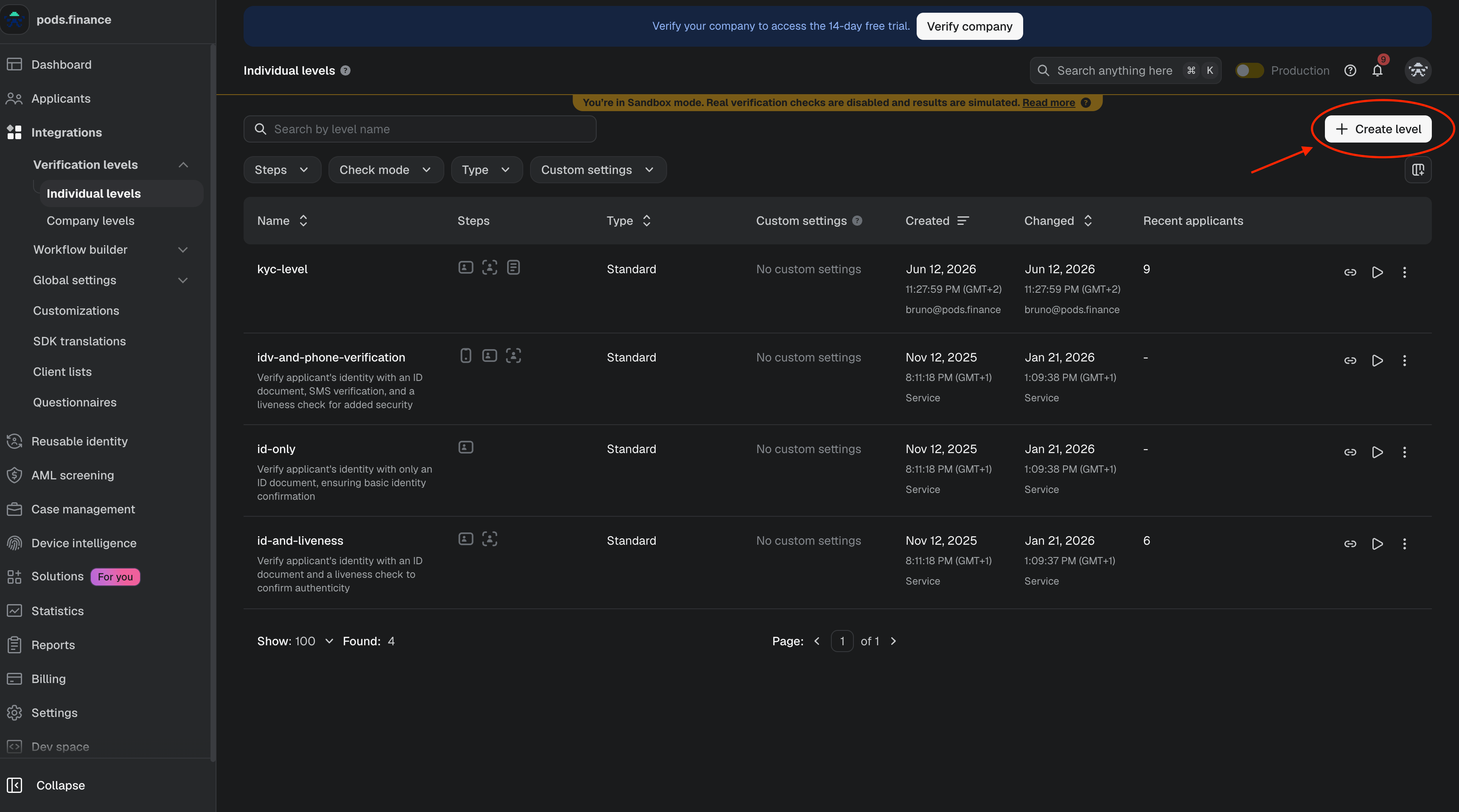
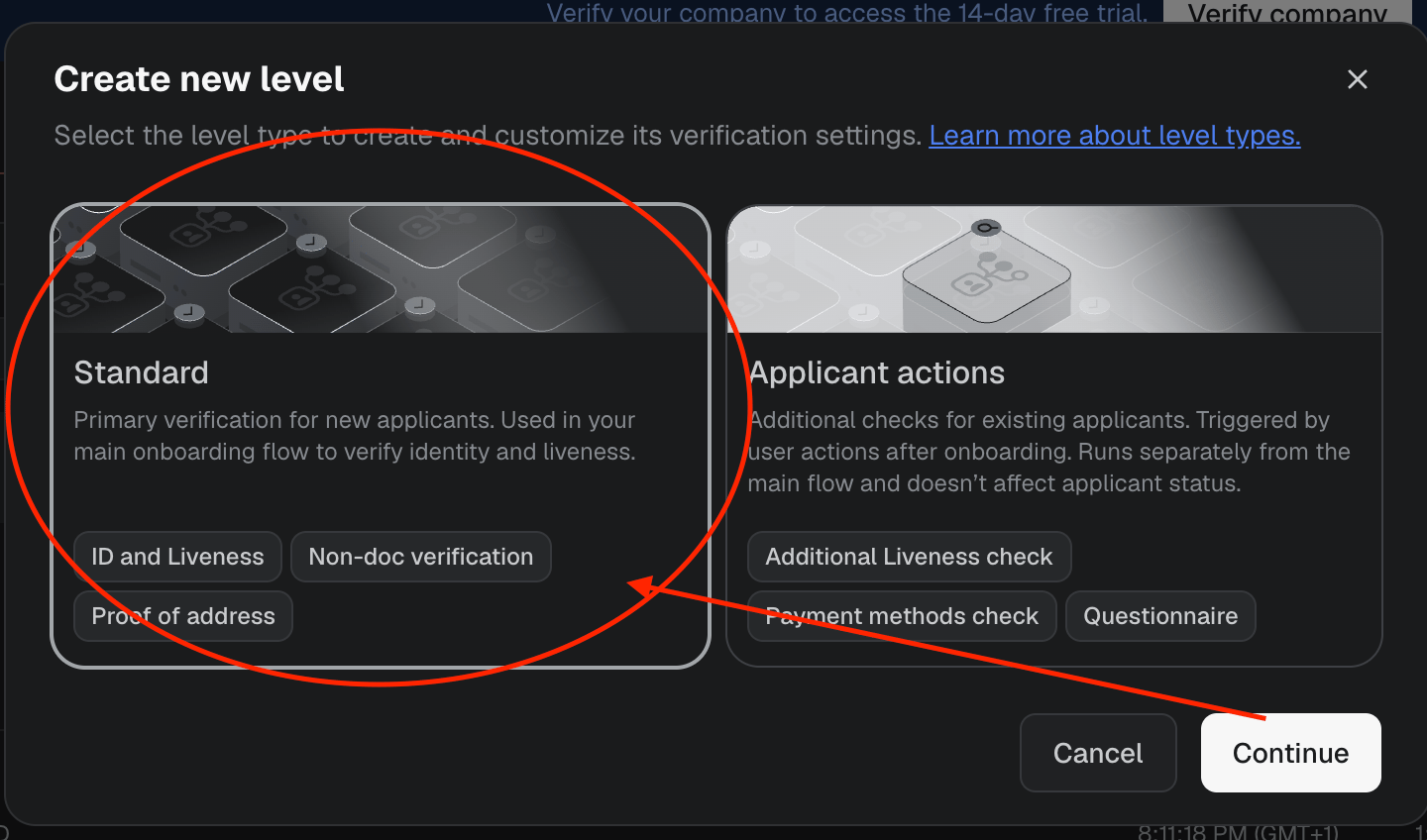 ### Required Sumsub steps
| Step | Configuration |
| ----------------- | ------------------------------------------------------------------------------------------------------------------------------------------------------------ |
| Identity document | Allow ID card, passport, driver's license, and residence permit. The applicant submits one accepted document. |
| Selfie | Use advanced liveness check. |
| Applicant data | Require first name, last name, TIN, tax residence country, email, date of birth, street, street line 2, country, city, state, building number, and postcode. |
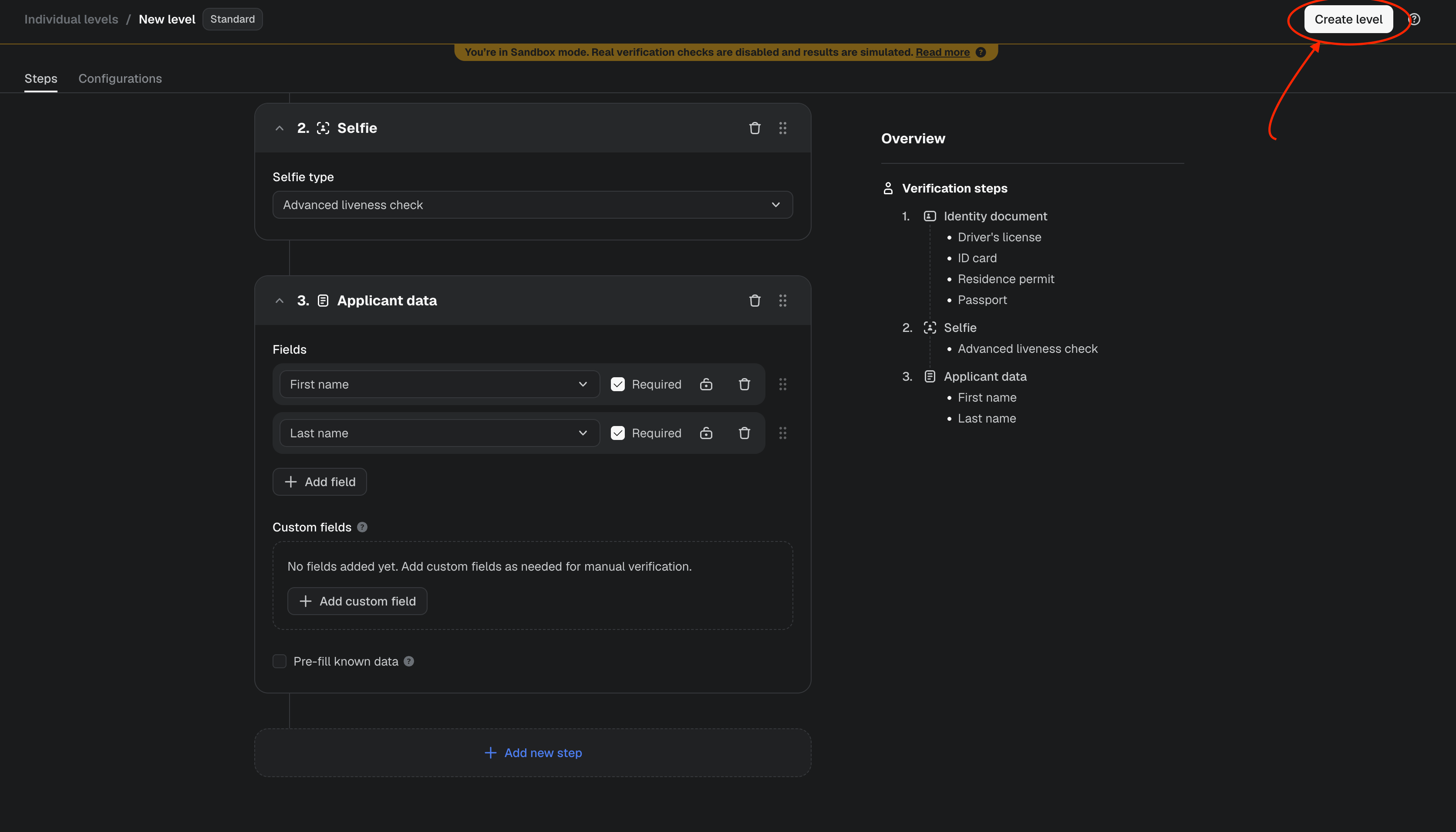
Add the identity document and selfie steps first.
### Required Sumsub steps
| Step | Configuration |
| ----------------- | ------------------------------------------------------------------------------------------------------------------------------------------------------------ |
| Identity document | Allow ID card, passport, driver's license, and residence permit. The applicant submits one accepted document. |
| Selfie | Use advanced liveness check. |
| Applicant data | Require first name, last name, TIN, tax residence country, email, date of birth, street, street line 2, country, city, state, building number, and postcode. |
Add the identity document and selfie steps first.
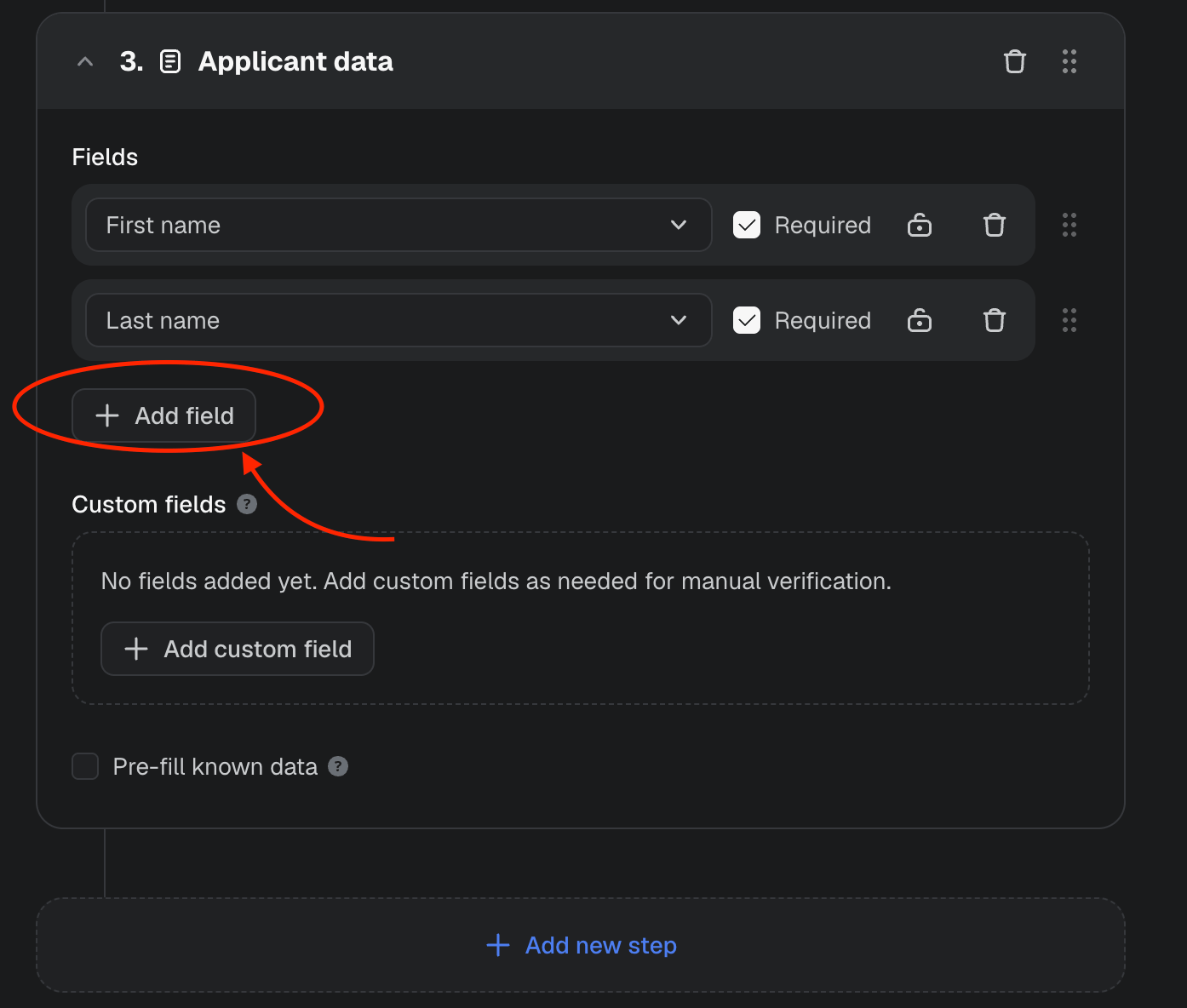
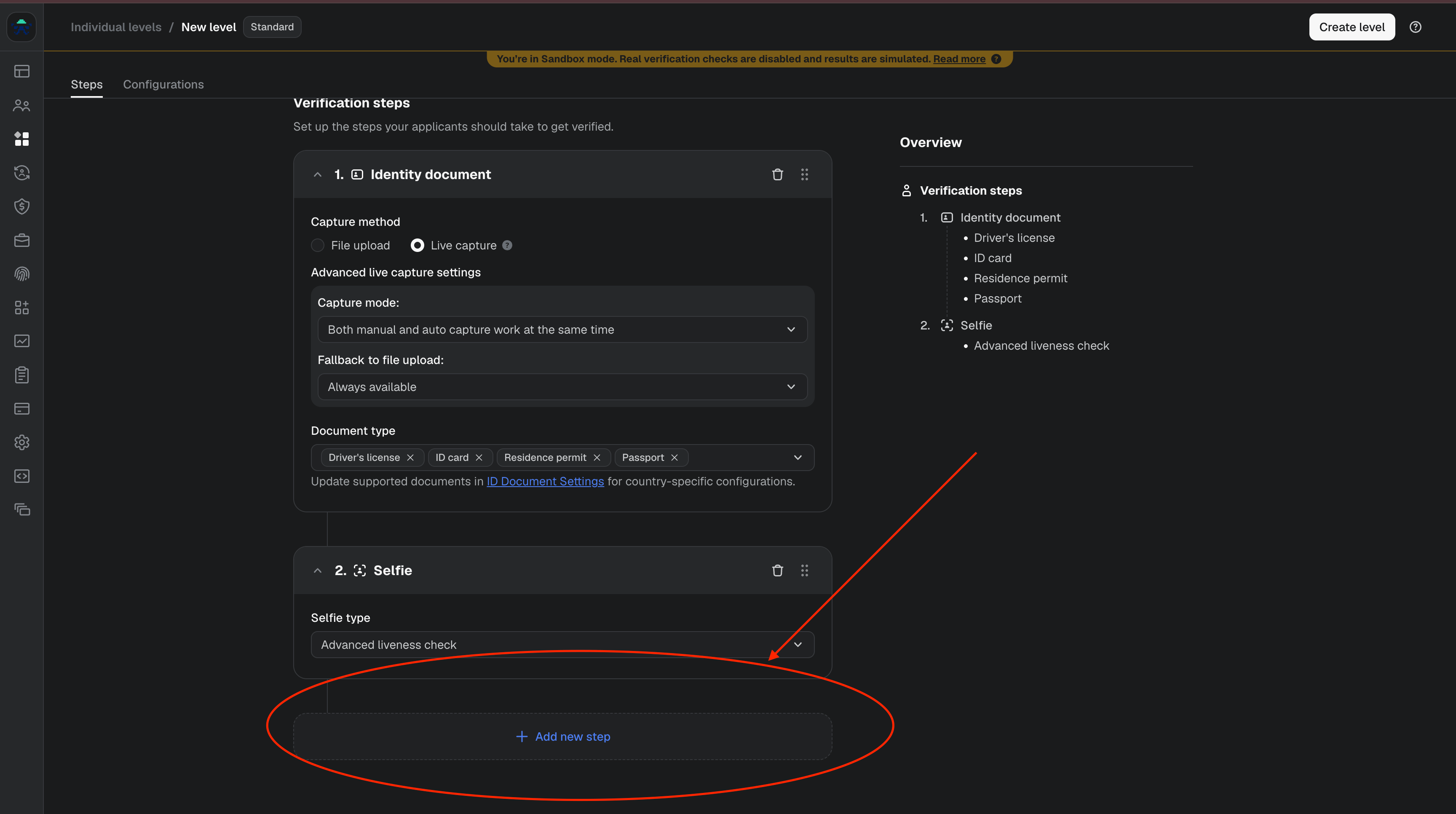 Then add the applicant data step.
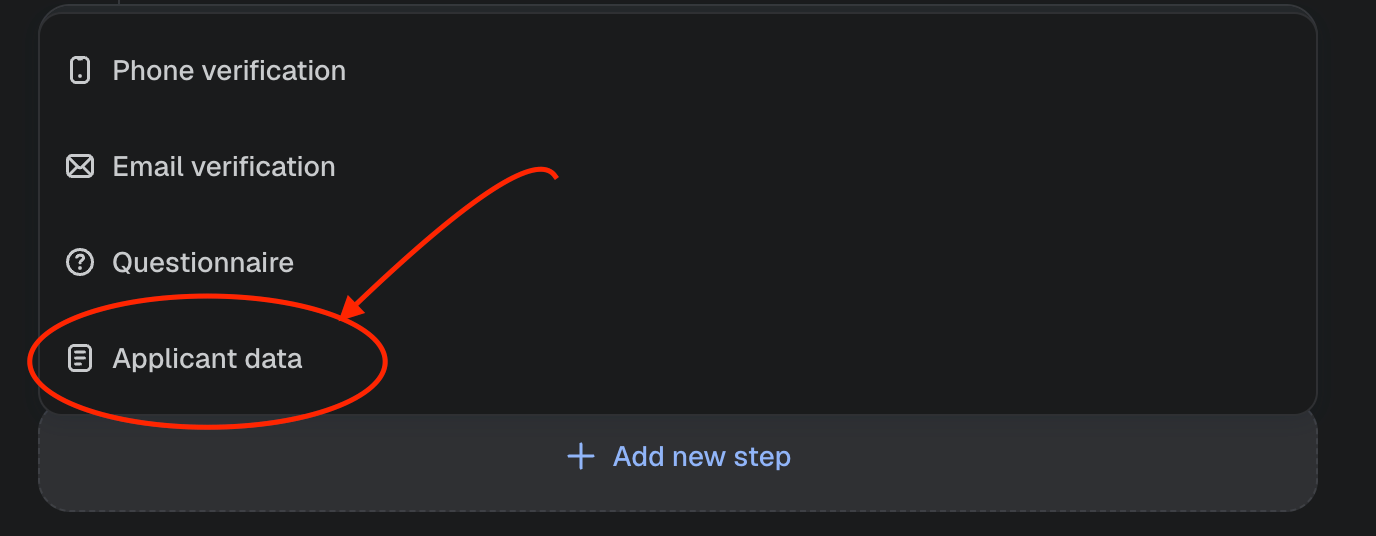 Add each required applicant data field as a separate required field.
 Create the level.
 ### Country-specific requirements
The required tax id, applicant fields, and Sumsub reusable-identity partner differ per country. For Brazil, Avenia requires:
* CPF in the Sumsub `TIN` field.
* Country of Tax ID set to Brazil.
* Full name.
* Date of birth.
* One identity document: `ID_CARD`, `PASSPORT`, `DRIVERS`, or `RESIDENCE_PERMIT`.
* Sumsub review answer `GREEN`.
For Mexico, Colombia, and Argentina, confirm the equivalent tax-id field, required documents, and Sumsub partner with Pods before creating the level, since those routes are not live yet.
Reference:
* [Sumsub verification levels](https://docs.sumsub.com/docs/verification-levels)
* [Sumsub configure verification levels](https://docs.sumsub.com/docs/configure-verification-levels)
* [Avenia Sumsub shared token flow](https://integration-guide.avenia.io/docs/KYC/kycSumsubSharedToken/)
## 2. Add the local provider as a reusable identity recipient
Before generating reusable KYC share tokens, add the local KYC/AML provider as a recipient in Sumsub.
1. Go to `Reusable identity` -> `Partners`.
2. Open the `Recipients` tab.
3. Click `Add recipient`.
4. Enter the `PROVIDER_PARTNER_TOKEN` provided by Pods.
5. Save the recipient setup.
### Country-specific requirements
The required tax id, applicant fields, and Sumsub reusable-identity partner differ per country. For Brazil, Avenia requires:
* CPF in the Sumsub `TIN` field.
* Country of Tax ID set to Brazil.
* Full name.
* Date of birth.
* One identity document: `ID_CARD`, `PASSPORT`, `DRIVERS`, or `RESIDENCE_PERMIT`.
* Sumsub review answer `GREEN`.
For Mexico, Colombia, and Argentina, confirm the equivalent tax-id field, required documents, and Sumsub partner with Pods before creating the level, since those routes are not live yet.
Reference:
* [Sumsub verification levels](https://docs.sumsub.com/docs/verification-levels)
* [Sumsub configure verification levels](https://docs.sumsub.com/docs/configure-verification-levels)
* [Avenia Sumsub shared token flow](https://integration-guide.avenia.io/docs/KYC/kycSumsubSharedToken/)
## 2. Add the local provider as a reusable identity recipient
Before generating reusable KYC share tokens, add the local KYC/AML provider as a recipient in Sumsub.
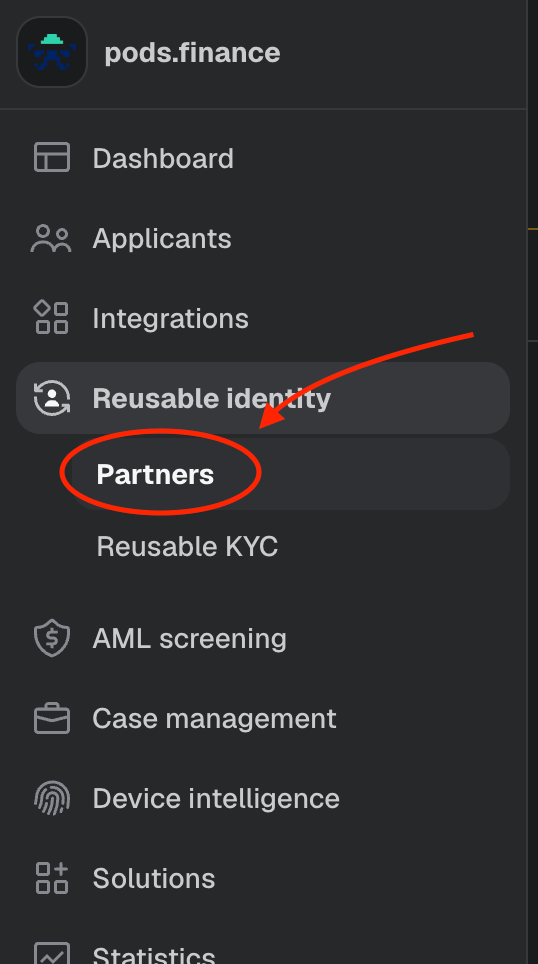
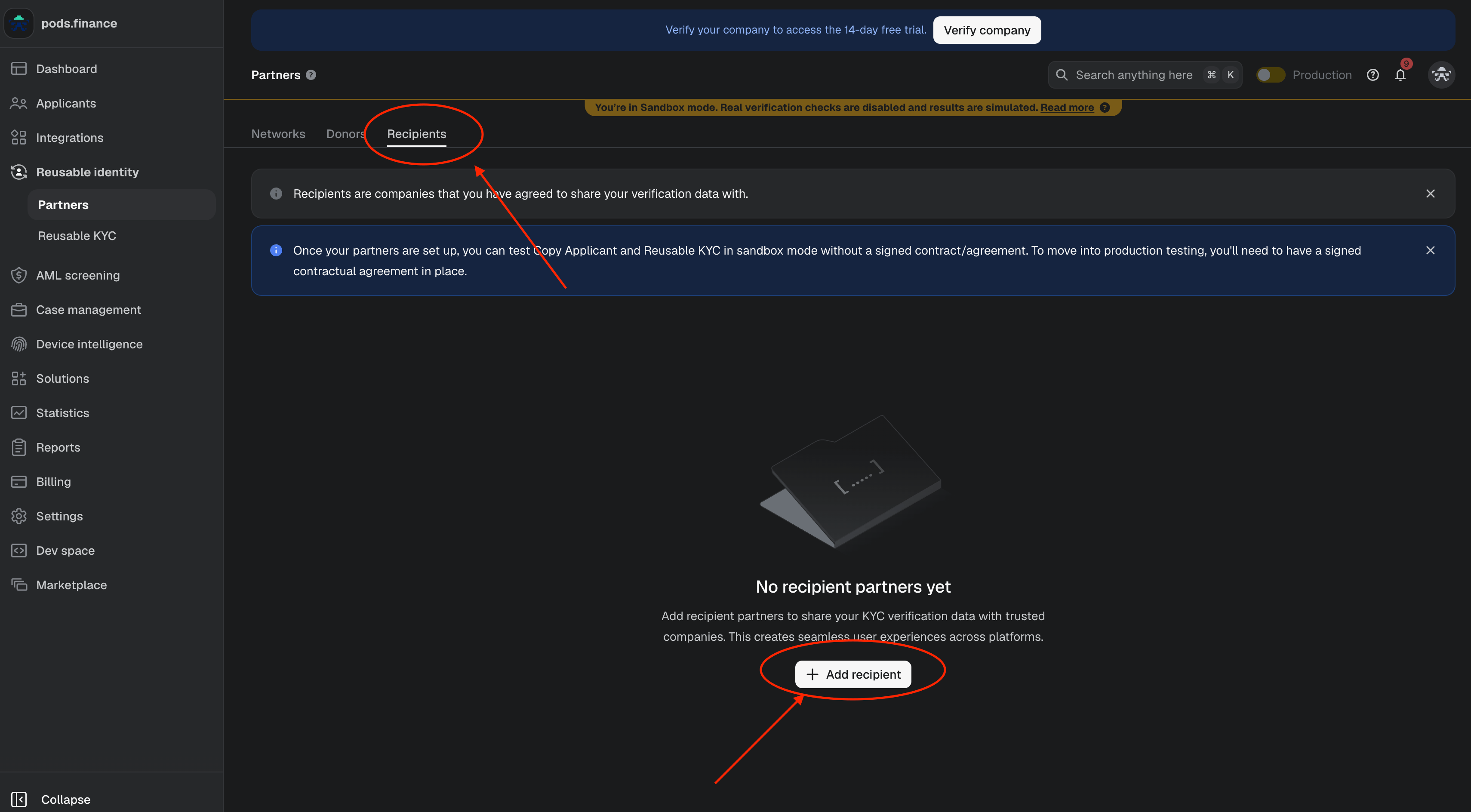
1. Go to `Reusable identity` -> `Partners`.
2. Open the `Recipients` tab.
3. Click `Add recipient`.
4. Enter the `PROVIDER_PARTNER_TOKEN` provided by Pods.
5. Save the recipient setup.
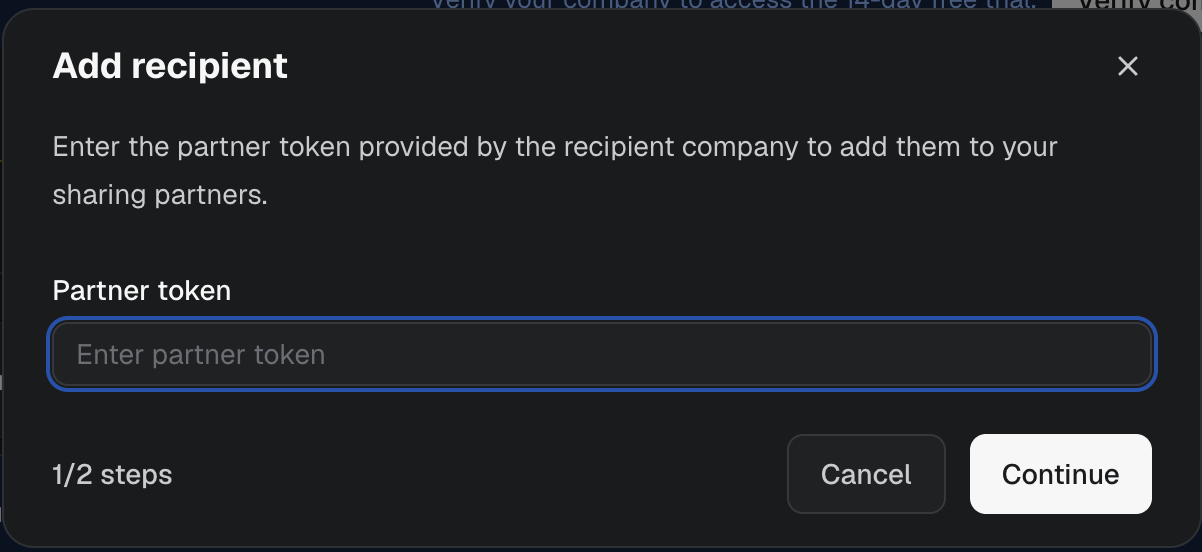 After the recipient is available, use the `PROVIDER_FOR_CLIENT_ID` from Pods when generating share tokens. This is the provider's Sumsub recipient/client id. It is separate from the partner token and from your Pods API key.
Reference: [Sumsub partner management](https://docs.sumsub.com/docs/manage-sharing-partners).
## 3. Create a Sumsub app token
Create the Sumsub app token after Reusable Identity is enabled and after the local provider is added as a recipient. This order matters because the token must include permission to share applicant data.
1. Open Sumsub Dashboard.
2. Go to `Dev space` -> `App tokens`.
3. Create a new app token.
4. Ensure `Reusable Identity` -> `Share applicants data` is selected.
5. Save the token and secret key securely. Sumsub only shows the secret once.
After the recipient is available, use the `PROVIDER_FOR_CLIENT_ID` from Pods when generating share tokens. This is the provider's Sumsub recipient/client id. It is separate from the partner token and from your Pods API key.
Reference: [Sumsub partner management](https://docs.sumsub.com/docs/manage-sharing-partners).
## 3. Create a Sumsub app token
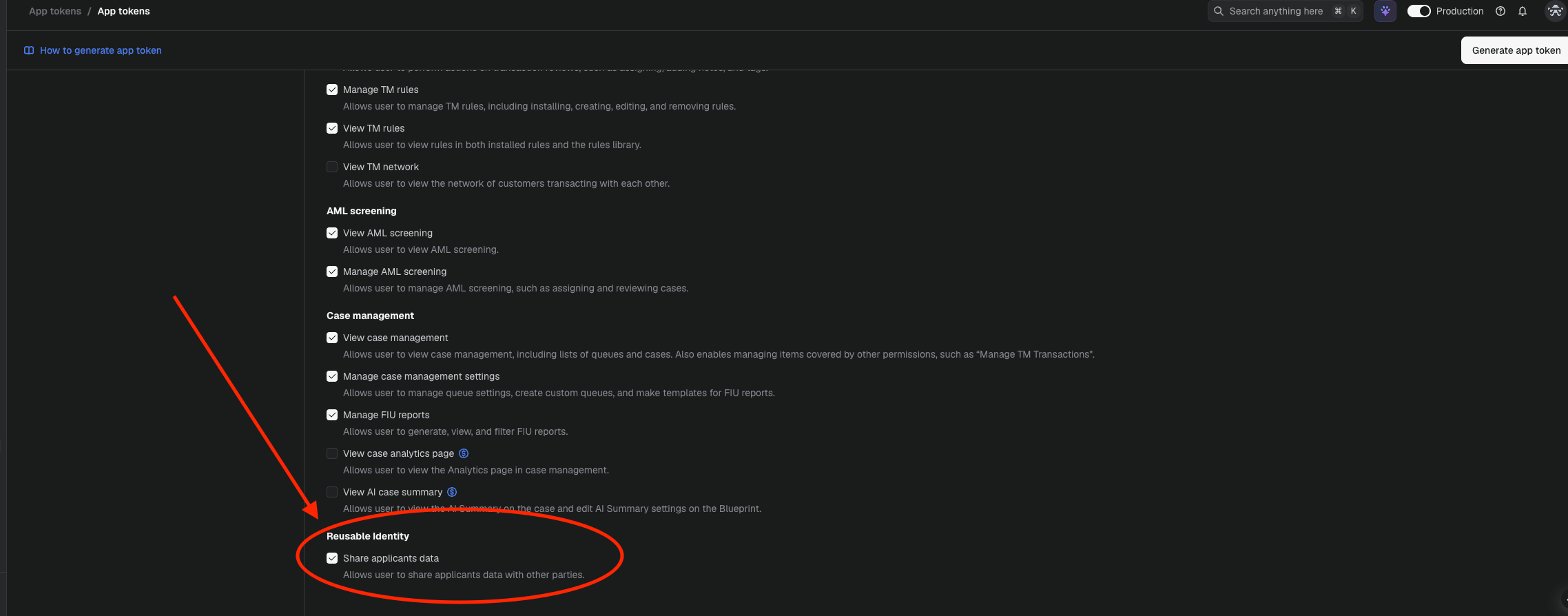
Create the Sumsub app token after Reusable Identity is enabled and after the local provider is added as a recipient. This order matters because the token must include permission to share applicant data.
1. Open Sumsub Dashboard.
2. Go to `Dev space` -> `App tokens`.
3. Create a new app token.
4. Ensure `Reusable Identity` -> `Share applicants data` is selected.
5. Save the token and secret key securely. Sumsub only shows the secret once.
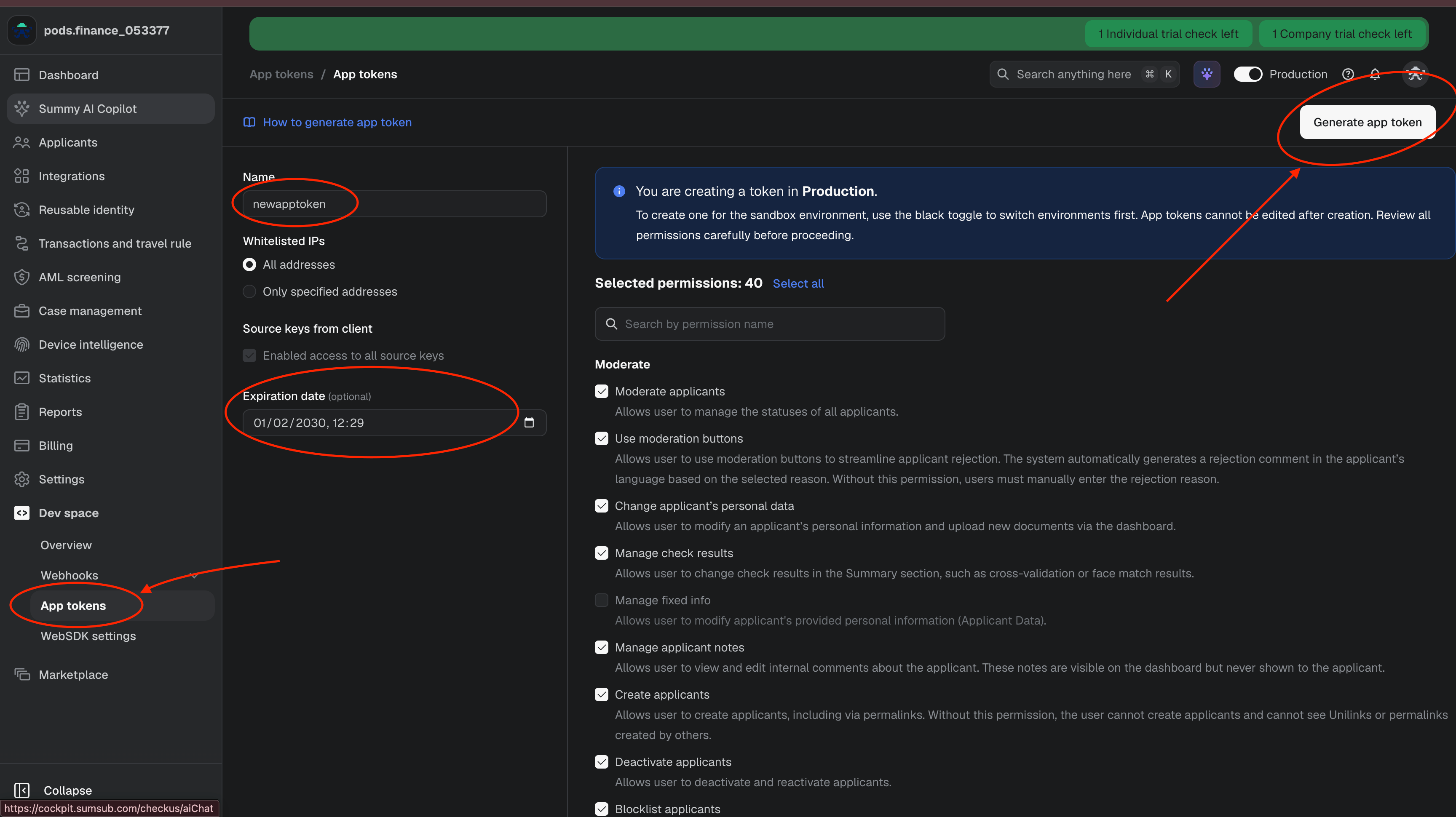
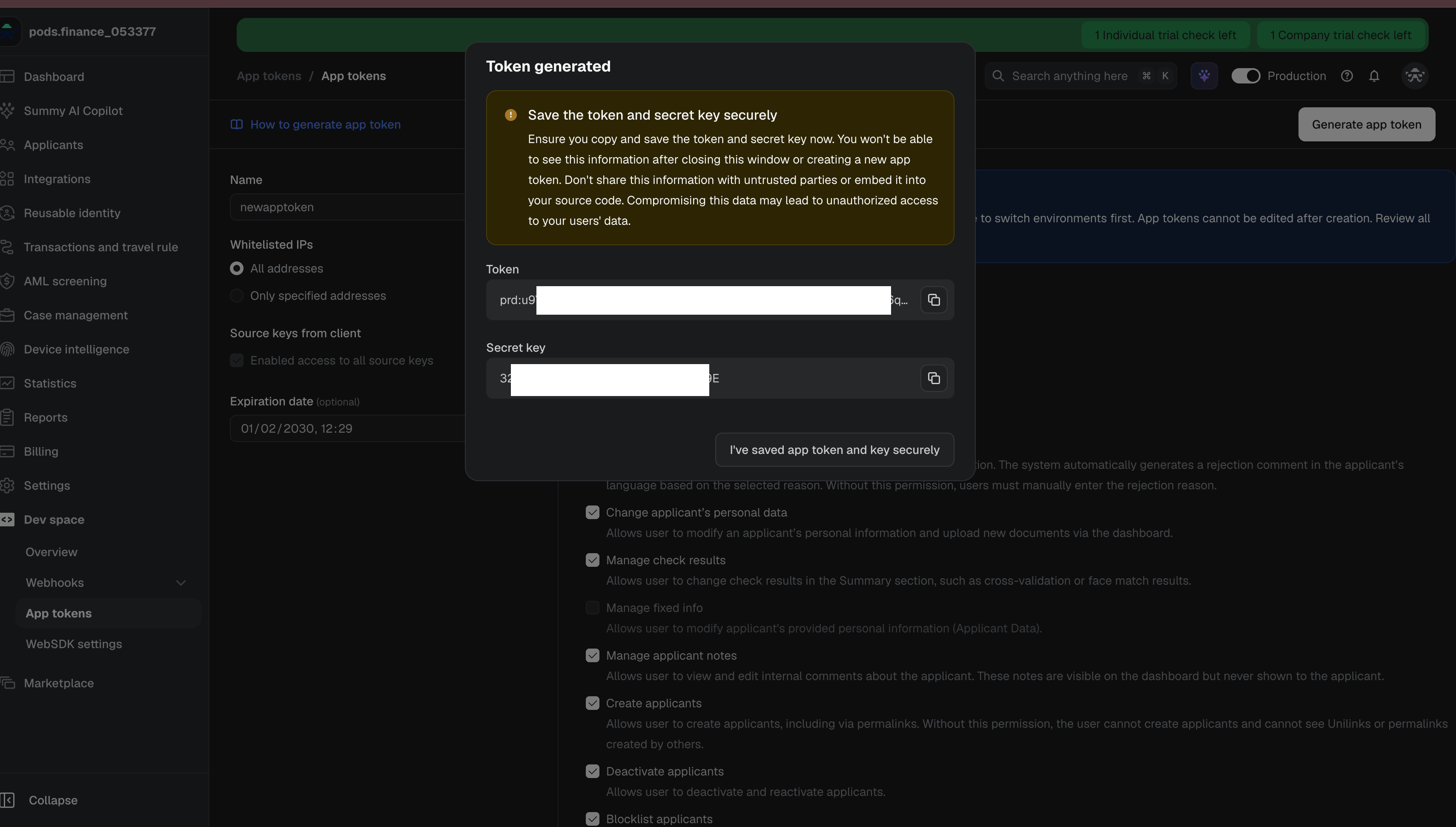 Store them in your backend:
```bash theme={null}
SUMSUB_API_BASE_URL="https://api.sumsub.com"
SUMSUB_APP_TOKEN="..."
SUMSUB_SECRET_KEY="..."
SUMSUB_LEVEL_NAME="pods-ramp-level"
PROVIDER_FOR_CLIENT_ID="..."
```
If Sumsub enables Reusable Identity after you already created an app token, create a new app token and make sure `Reusable Identity` -> `Share applicants data` is selected.
A valid app token still requires active Sumsub credits/license. If Sumsub returns `license-key-exhausted` or `Not enough credit`, ask Sumsub to enable credits for the target environment.
Reference: [Sumsub app tokens](https://docs.sumsub.com/reference/authentication).
## 4. Run WebSDK and confirm approval
Use your backend to create a Sumsub WebSDK access token for the applicant and mount WebSDK in your application. Use the same `pods-ramp-level` level name configured above.
Your backend must only continue to Pods after Sumsub reaches:
```text theme={null}
reviewStatus = completed
reviewResult.reviewAnswer = GREEN
```
You can detect that result by receiving Sumsub webhooks or by polling Sumsub from your backend. If you use webhooks, the target must point to your backend, not to Pods.
Required signal:
| Signal | Required? | Purpose |
| ----------------------------------------------- | ----------- | ---------------------------------------------------------------------------- |
| `applicantReviewed` with `completed + GREEN` | Yes | Generate the share token and submit it to Pods. |
| `applicantReviewed` with `completed + RED` | Yes | Do not submit to Pods. Keep the user blocked or route them to retry/support. |
| `applicantPending` | Recommended | Useful for monitoring pending reviews. |
| `applicantAwaitingUser` | Recommended | Useful to prompt the user to complete missing steps. |
| `applicantAwaitingService` or `applicantOnHold` | Recommended | Useful for operations visibility. |
| `applicantCreated` | Optional | Logging only. Do not call Pods from this event. |
Reference:
* [Sumsub user verification webhooks](https://docs.sumsub.com/docs/user-verification-webhooks)
* [Sumsub receive verification results](https://docs.sumsub.com/docs/receive-and-interpret-results-via-api)
* [Sumsub WebSDK integration](https://docs.sumsub.com/docs/get-started-with-web-sdk)
## 5. Generate the Sumsub share token
After Sumsub returns `completed + GREEN`, your backend calls Sumsub to generate a fresh share token for that applicant and the local provider's recipient.
```http theme={null}
POST https://api.sumsub.com/resources/accessTokens/shareToken
```
Request:
```json theme={null}
{
"applicantId": "SUMSUB_APPLICANT_ID",
"forClientId": "PROVIDER_FOR_CLIENT_ID",
"ttlInSecs": 600
}
```
Use the approved Sumsub applicant id and reuse the same `PROVIDER_FOR_CLIENT_ID` provided by Pods. Generate a fresh `shareToken` for each approved applicant import. Sumsub share tokens are short-lived and invalidated after usage.
Response:
```json theme={null}
{
"token": "SUMSUB_SHARE_TOKEN",
"forClientId": "PROVIDER_FOR_CLIENT_ID"
}
```
Reference:
* [Sumsub generate share token API](https://docs.sumsub.com/reference/generate-share-token)
* [Sumsub reusable KYC via API](https://docs.sumsub.com/docs/reusable-kyc-via-api)
* [Avenia shared token flow](https://integration-guide.avenia.io/docs/KYC/kycSumsubSharedToken/)
## 6. Submit the share token to Pods
Send the fresh token from your backend to Pods. Pods does not store the share token.
Pods validates the submitted tax id and searches its profiles for an approved identity with the same salted tax-id hash. When the local provider still reports the identity as approved, Pods creates a separate profile for your customer, reuses the approved identity, and returns `approved` without consuming the fresh token. Pods stores only the salted hash and the last four digits, never the raw tax id.
If no approved identity can be revalidated, Pods creates or reuses the customer profile and internal subaccount with the local provider, then imports the fresh share token normally. If the provider reports that the token was already imported into that subaccount, Pods checks that subaccount for an existing approved attempt before adopting it.
```http theme={null}
POST /api/v1/kyc/sumsub-share-token
```
Request:
```json theme={null}
{
"cpf": "52998224725",
"shareToken": "SUMSUB_SHARE_TOKEN",
"sumsubApplicantId": "SUMSUB_APPLICANT_ID",
"email": "user@example.com",
"walletAddress": "0x0000000000000000000000000000000000000001"
}
```
| Field | Required | Description |
| ------------------- | -------- | ------------------------------------------------------------------------------------------------------------------------------------------------------ |
| `cpf` | Yes | Valid tax id used to match a previously approved identity. For Brazil this is a CPF. Send digits only or formatted; Pods does not store the raw value. |
| `shareToken` | Yes | The fresh Sumsub token generated for the local provider. |
| `sumsubApplicantId` | Yes | Unique Sumsub applicant id from the approved applicant. Pods uses it for customer-scoped idempotency. |
| `email` | Yes | User email stored on the Pods Ramp profile. |
| `walletAddress` | Yes | User wallet address stored on the Pods Ramp profile and used by money movement flows. |
Pods generates the public `kycUserId` and returns it in the response. Store this id in your backend and use it for future status checks.
Successful response:
```json theme={null}
{
"kycUserId": "550e8400-e29b-41d4-a716-446655440000",
"status": "provider_pending"
}
```
If this request is retried with the same `sumsubApplicantId`, Pods returns the same customer-scoped profile instead of creating a duplicate. The tax id must remain the same; a conflicting tax id returns `409 SUMSUB_CPF_MISMATCH`. An immediate `approved` response means the local provider revalidated an existing approved identity for the tax id. A `provider_pending` response means the provider accepted a new import for processing; approval is only final after the status endpoint returns `approved`. See [Track Pods Ramp status](/guides/ramp/status) to poll for that result, and [Move money with Pods Ramp](/guides/ramp/quotes) to use the resulting approval.
Store them in your backend:
```bash theme={null}
SUMSUB_API_BASE_URL="https://api.sumsub.com"
SUMSUB_APP_TOKEN="..."
SUMSUB_SECRET_KEY="..."
SUMSUB_LEVEL_NAME="pods-ramp-level"
PROVIDER_FOR_CLIENT_ID="..."
```
If Sumsub enables Reusable Identity after you already created an app token, create a new app token and make sure `Reusable Identity` -> `Share applicants data` is selected.
A valid app token still requires active Sumsub credits/license. If Sumsub returns `license-key-exhausted` or `Not enough credit`, ask Sumsub to enable credits for the target environment.
Reference: [Sumsub app tokens](https://docs.sumsub.com/reference/authentication).
## 4. Run WebSDK and confirm approval
Use your backend to create a Sumsub WebSDK access token for the applicant and mount WebSDK in your application. Use the same `pods-ramp-level` level name configured above.
Your backend must only continue to Pods after Sumsub reaches:
```text theme={null}
reviewStatus = completed
reviewResult.reviewAnswer = GREEN
```
You can detect that result by receiving Sumsub webhooks or by polling Sumsub from your backend. If you use webhooks, the target must point to your backend, not to Pods.
Required signal:
| Signal | Required? | Purpose |
| ----------------------------------------------- | ----------- | ---------------------------------------------------------------------------- |
| `applicantReviewed` with `completed + GREEN` | Yes | Generate the share token and submit it to Pods. |
| `applicantReviewed` with `completed + RED` | Yes | Do not submit to Pods. Keep the user blocked or route them to retry/support. |
| `applicantPending` | Recommended | Useful for monitoring pending reviews. |
| `applicantAwaitingUser` | Recommended | Useful to prompt the user to complete missing steps. |
| `applicantAwaitingService` or `applicantOnHold` | Recommended | Useful for operations visibility. |
| `applicantCreated` | Optional | Logging only. Do not call Pods from this event. |
Reference:
* [Sumsub user verification webhooks](https://docs.sumsub.com/docs/user-verification-webhooks)
* [Sumsub receive verification results](https://docs.sumsub.com/docs/receive-and-interpret-results-via-api)
* [Sumsub WebSDK integration](https://docs.sumsub.com/docs/get-started-with-web-sdk)
## 5. Generate the Sumsub share token
After Sumsub returns `completed + GREEN`, your backend calls Sumsub to generate a fresh share token for that applicant and the local provider's recipient.
```http theme={null}
POST https://api.sumsub.com/resources/accessTokens/shareToken
```
Request:
```json theme={null}
{
"applicantId": "SUMSUB_APPLICANT_ID",
"forClientId": "PROVIDER_FOR_CLIENT_ID",
"ttlInSecs": 600
}
```
Use the approved Sumsub applicant id and reuse the same `PROVIDER_FOR_CLIENT_ID` provided by Pods. Generate a fresh `shareToken` for each approved applicant import. Sumsub share tokens are short-lived and invalidated after usage.
Response:
```json theme={null}
{
"token": "SUMSUB_SHARE_TOKEN",
"forClientId": "PROVIDER_FOR_CLIENT_ID"
}
```
Reference:
* [Sumsub generate share token API](https://docs.sumsub.com/reference/generate-share-token)
* [Sumsub reusable KYC via API](https://docs.sumsub.com/docs/reusable-kyc-via-api)
* [Avenia shared token flow](https://integration-guide.avenia.io/docs/KYC/kycSumsubSharedToken/)
## 6. Submit the share token to Pods
Send the fresh token from your backend to Pods. Pods does not store the share token.
Pods validates the submitted tax id and searches its profiles for an approved identity with the same salted tax-id hash. When the local provider still reports the identity as approved, Pods creates a separate profile for your customer, reuses the approved identity, and returns `approved` without consuming the fresh token. Pods stores only the salted hash and the last four digits, never the raw tax id.
If no approved identity can be revalidated, Pods creates or reuses the customer profile and internal subaccount with the local provider, then imports the fresh share token normally. If the provider reports that the token was already imported into that subaccount, Pods checks that subaccount for an existing approved attempt before adopting it.
```http theme={null}
POST /api/v1/kyc/sumsub-share-token
```
Request:
```json theme={null}
{
"cpf": "52998224725",
"shareToken": "SUMSUB_SHARE_TOKEN",
"sumsubApplicantId": "SUMSUB_APPLICANT_ID",
"email": "user@example.com",
"walletAddress": "0x0000000000000000000000000000000000000001"
}
```
| Field | Required | Description |
| ------------------- | -------- | ------------------------------------------------------------------------------------------------------------------------------------------------------ |
| `cpf` | Yes | Valid tax id used to match a previously approved identity. For Brazil this is a CPF. Send digits only or formatted; Pods does not store the raw value. |
| `shareToken` | Yes | The fresh Sumsub token generated for the local provider. |
| `sumsubApplicantId` | Yes | Unique Sumsub applicant id from the approved applicant. Pods uses it for customer-scoped idempotency. |
| `email` | Yes | User email stored on the Pods Ramp profile. |
| `walletAddress` | Yes | User wallet address stored on the Pods Ramp profile and used by money movement flows. |
Pods generates the public `kycUserId` and returns it in the response. Store this id in your backend and use it for future status checks.
Successful response:
```json theme={null}
{
"kycUserId": "550e8400-e29b-41d4-a716-446655440000",
"status": "provider_pending"
}
```
If this request is retried with the same `sumsubApplicantId`, Pods returns the same customer-scoped profile instead of creating a duplicate. The tax id must remain the same; a conflicting tax id returns `409 SUMSUB_CPF_MISMATCH`. An immediate `approved` response means the local provider revalidated an existing approved identity for the tax id. A `provider_pending` response means the provider accepted a new import for processing; approval is only final after the status endpoint returns `approved`. See [Track Pods Ramp status](/guides/ramp/status) to poll for that result, and [Move money with Pods Ramp](/guides/ramp/quotes) to use the resulting approval.